Site Settings
Each site in Sealmetrics has its own basic settings: a name, a timezone, and a default currency.
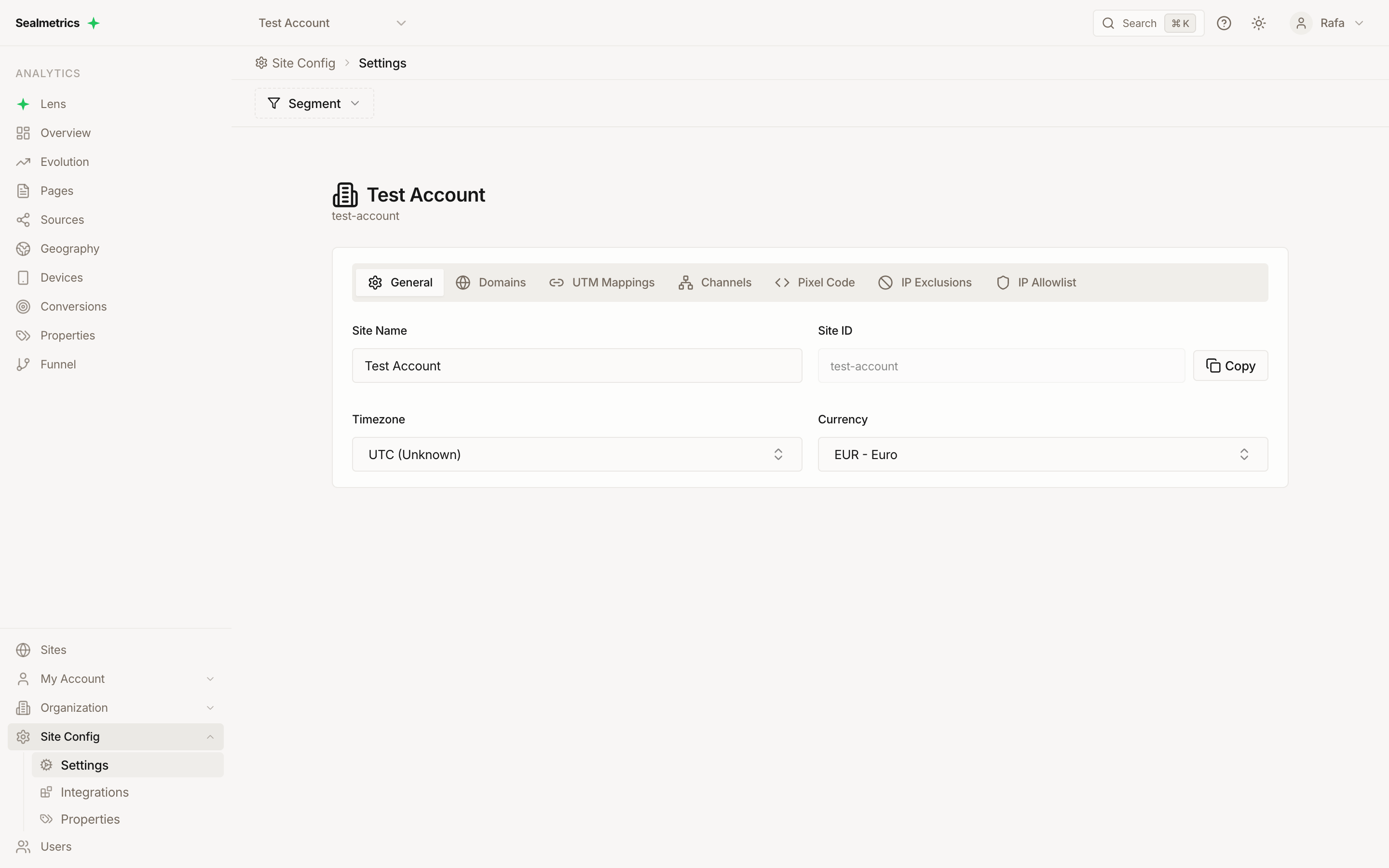
Accessing Site Settings
- Open the sidebar and go to the Site Config group
- Click Settings
This opens the settings page for the currently selected site. The General tab is shown first.
Sealmetrics is organized by sites. There is no separate global "account" settings page — the name, timezone, and currency below are configured per site. Personal settings (your name, password, 2FA) live under My Account, and member/billing settings live under Organization.
General Tab
The General tab contains the core configuration for the site.
Site Name
The display name for the site, shown across the dashboard and in reports.
You can edit this field directly. A Save Changes button appears whenever you have unsaved edits.
Site ID
Your unique site identifier. This field is read-only and can be copied with the copy button next to it.
The Site ID is used for:
- API calls
- Support requests
- Integration configuration
Timezone
All report dates and ranges are displayed in the site's timezone.
Click the timezone selector to open a searchable list — you can search by timezone name (for example, Europe/Madrid) or by country name.
Currency
The default currency used to display revenue and conversion values.
Available options include:
| Code | Currency |
|---|---|
| EUR | Euro |
| USD | US Dollar |
| GBP | British Pound |
| CHF | Swiss Franc |
| JPY | Japanese Yen |
| CAD | Canadian Dollar |
| AUD | Australian Dollar |
| MXN | Mexican Peso |
| BRL | Brazilian Real |
Saving Changes
After editing the name, timezone, or currency:
- A Save Changes button appears below the fields.
- Click Save Changes to apply, or Cancel to discard your edits.
Changes take effect immediately.
Only users who can edit the site (organization owners and admins) see the editable fields and the Save button. Members with view-only access see the values but cannot change them.
Other Tabs
The Site Settings page also includes additional tabs beyond General:
- Domains — domains authorized to send tracking data to this site
- UTM Mappings — map custom URL parameters to standard UTM fields
- Channels — custom channel grouping rules for this site
- Pixel Code — installation code and conversion tracking snippets
- IP Exclusions — exclude traffic from specific IP addresses (e.g. your office)
- IP Allowlist — restrict dashboard and API access to specific IP addresses (details)
Team members and their access are managed at the organization level, under Organization → Members — see Users & Teams. API keys are managed under My Account → API Keys.