LLM Providers
Configure which AI model powers the Lens chat assistant. Two kinds of provider are available:
- Seal AI Private — Sealmetrics' managed provider. Runs entirely in the EU (Paris), no prompt retention, no API key needed. Subject to plan entitlement and a monthly token quota — see Seal AI Private.
- Bring-your-own-key (BYOK) — you add your own API key for Anthropic, OpenAI, Gemini, or DeepSeek Cloud. Per-user: your configuration is used across every site you have access to. Free from Sealmetrics — unmetered, with no add-on fee; you pay only your own provider.
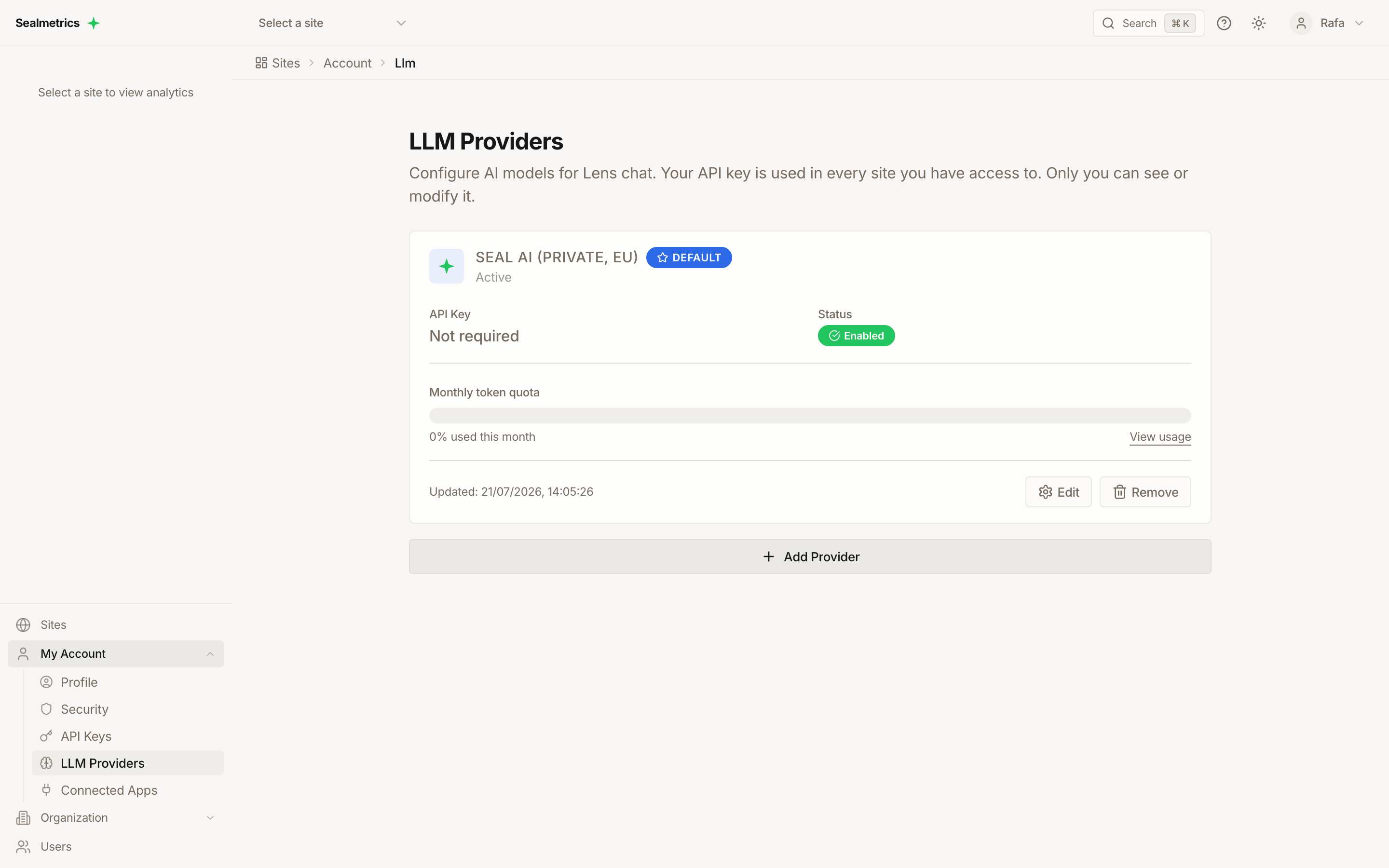
Your LLM Providers configuration belongs to you, not to a site or organization. The same key is applied to every site you can access, and only you can see or modify it. There is no per-account dropdown — other users configure their own keys independently.
Accessing LLM Providers
In the sidebar, open My Account → LLM Providers (/account/llm).
LLM Providers (My Account) controls which AI model the Lens chat uses, per user.
LENS Settings (at /settings/lens) is a separate, per-site setting that controls the automated insights analysis frequency (daily / weekly / manual) and email notifications. Don't confuse the two.
Available Providers
| Provider | API Key Required | Notes |
|---|---|---|
| Seal AI (Private, EU) | No | Managed by Sealmetrics; plan entitlement + 5M tokens/month quota |
| Anthropic (Claude) | Yes | BYOK |
| OpenAI (GPT) | Yes | BYOK |
| DeepSeek Cloud | Yes | BYOK; optional custom base URL |
| Google (Gemini) | Yes | BYOK |
The self-hosted DeepSeek Local model used by shared infrastructure is not available here for the chat.
Seal AI Private
When available on your plan, the Seal AI (Private, EU) card appears first, marked Default. Its card shows the Monthly token quota gauge with the percentage used this month and a View usage link to the Seal AI Usage screen. If your plan doesn't include it, the card shows an upgrade badge instead — see availability by plan.
Adding a Provider
Step 1: Open the form
If you have no providers configured yet, the Configure LLM Provider form appears automatically. Otherwise, click Add Provider.
Step 2: Select a provider
Choose a provider from the dropdown. Each provider shows a short description and a link to obtain an API key. The provider can't be changed after a configuration is created — to switch providers, add a new one or remove the existing one.
Step 3: Enter your API key (BYOK providers)
Every BYOK provider requires an API key — Seal AI does not. Paste it into the API Key field (use the eye toggle to reveal it). Your key is encrypted before storage and only the last 4 characters are ever shown afterwards (****XXXX).
For DeepSeek Cloud, you can optionally set a custom Base URL (defaults to https://api.deepseek.com/v1).
Step 4: Configure model overrides (optional)
You can override the default model used at three complexity levels. Leave a field blank to use the provider's default.
| Level | Anthropic default | OpenAI default | Gemini default | DeepSeek Cloud default |
|---|---|---|---|---|
| Simple | claude-haiku-5-5 | gpt-4o-mini | gemini-2.5-flash | deepseek-chat |
| Complex | claude-sonnet-5-5 | gpt-4o | gemini-2.5-flash | deepseek-chat |
| Critical | claude-opus-5-5 | gpt-4o | gemini-2.5-pro | deepseek-chat |
Use Reset to defaults to clear all overrides.
Step 5: Test the connection
Click Test Connection to verify the key and provider are reachable before saving. A successful test shows a "Connection Successful" message with the response latency in milliseconds.
Step 6: Save
Click Save Settings to store the configuration.
Managing Your Configurations
Each configured provider appears as a card showing:
- Provider name and whether it's the default
- API key status (
****XXXXwhen configured) - Enabled / disabled status
- Any model overrides
- Last updated timestamp
From a card you can:
- Set as Default — make this provider the one Lens chat uses (only one default at a time)
- Edit — update the API key, model overrides, base URL, or enabled status
- Remove — delete the configuration (if it was the default, another configured provider becomes the default)
Enable / disable
Use the Enable Configuration toggle when editing a provider. When a configuration is disabled, that provider can't be used by Lens chat, but the saved key is kept so you can re-enable it later.
Security
API Key Storage
- API keys are encrypted at rest before storage
- Only the last 4 characters are displayed (
****XXXX) - Keys are never returned in API responses or logged
Data Privacy
When you use a cloud provider, aggregated analytics data (not raw events, no personally identifiable information) is sent to that provider to generate chat responses. Because this is BYOK, the data is processed under your own provider account and API key.
Troubleshooting
"Connection Failed" on test
- Verify your API key is correct and active
- Check the provider's status page for outages
- Ensure your network allows outbound API calls
- Try a different provider
Lens chat fails with Anthropic, or Anthropic emails you about a retired model
Symptom: with an Anthropic key and the model fields left blank, Lens chat requests fail with not_found_error. Anthropic may also email you that your organization is still calling a retired model such as claude-sonnet-4-20250514, naming the API key you added to Sealmetrics.
Cause: this is not a problem with your Anthropic account or your key. Before October 2026, a blank model field fell back to claude-sonnet-4-20250514, which Anthropic retired on June 15, 2026. Anthropic retires older models periodically, so the same thing can happen again with a future model.
What Sealmetrics does: the defaults are now claude-haiku-5-5, claude-sonnet-5-5 and claude-opus-5-5, and a retired Anthropic model ID saved as an override is replaced with its current equivalent when it is read. You don't need to change anything.
If you want to fix it yourself straight away, open My Account → LLM Providers, click Edit on the Anthropic card, enter claude-sonnet-5-5 in the Complex model field and click Save Settings. Leaving the field blank afterwards is also fine: you get the default.
"API key is required" when saving
Every provider here requires a key. Get one from:
- Anthropic: https://docs.anthropic.com/
- OpenAI: https://platform.openai.com/docs
- Google (Gemini): https://ai.google.dev/docs
- DeepSeek: https://platform.deepseek.com/
Related Documentation
- Seal AI Private - Pricing, quota, and plan availability of the managed provider
- Seal AI Usage screen - Token consumption dashboard
- LENS AI Overview - How LENS generates insights
- AI Assistant - Using the Lens chat interface
- Anomaly Detection - Automated alerts