Conversions
The Conversions report tells you which goals visitors complete and what they're worth, with a top-right toggle between Conversions (primary goals like purchases and signups, showing count, revenue, and average value) and Microconversions (engagement events like add-to-cart, shown by count). Use it to see your top-performing conversion types and total revenue for the selected period.
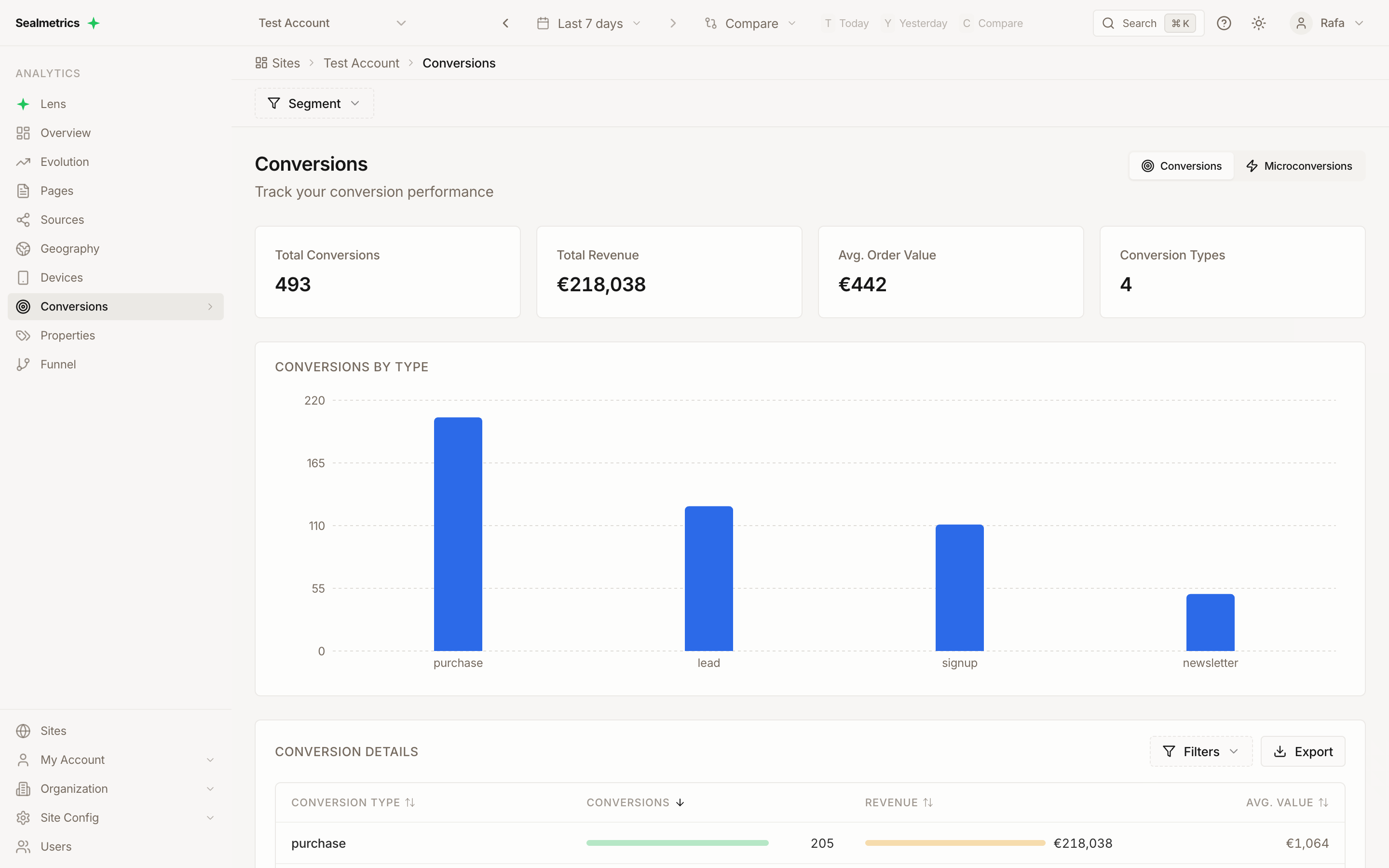
Accessing the Report
- Select a site from the site selector
- Click Conversions in the sidebar
URL pattern: /sites/{site_id}/conversions
View Toggle
A toggle in the top-right switches between two views: Conversions and Microconversions. Switching view clears any table filters you had set (see Filtering).
Both views group events by their type — the name you pass as the first argument of sealmetrics.conv() or sealmetrics.micro(). Up to 50 types are loaded per view for the selected period, ordered by count.
Conversions View
Shows completed conversion events (primary goals).
| Column | Description |
|---|---|
| Conversion Type | Name/identifier of the conversion |
| Conversions | Total number of conversions (shown with a metric bar) |
| Revenue | Sum of the amounts sent with those conversions (shown with a metric bar) |
| Avg. Value | Average amount per conversion |
Conversions sent without an amount count as 0, so they lower Avg. Value for their type.
Conversion Types
Conversion types are whatever names you send — Sealmetrics does not create them automatically. Common examples:
| Type | Typical Use |
|---|---|
| purchase | E-commerce transaction |
| signup | Account registration |
| subscription | Subscription signup |
| lead | Lead form submission |
| download | File download |
| booking | Appointment/reservation |
Microconversions View
Shows microconversion events (secondary goals/engagement metrics).
| Column | Description |
|---|---|
| Event Type | Name/identifier of the microconversion |
| Count | Total number of events (shown with a metric bar) |
Microconversions carry no revenue.
Common Microconversions
As with conversions, these are names you choose when you fire the event:
| Type | Typical Use |
|---|---|
| add_to_cart | Item added to shopping cart |
| begin_checkout | Checkout started |
| newsletter_signup | Email list subscription |
| video_play | Video engagement |
| scroll_depth | Page scroll milestone |
| click_cta | CTA button click |
| form_start | Form interaction started |
Table Behavior
- Every column is sortable; the default sort is Conversions / Count, descending
- A Total row at the bottom sums Conversions and Revenue; its Avg. Value is Total Revenue ÷ Total Conversions. When a table filter is active, an extra Filtered row gives the same subtotals for the matching rows only, with how many rows match
- Long lists are paginated
Summary Cards
The cards shown depend on the active view. They are calculated from the rows in the table, so they follow any active table filter as well as the global filters.
Conversions view:
| Card | Description |
|---|---|
| Total Conversions | Sum of all conversion events |
| Total Revenue | Sum of all revenue |
| Avg. Order Value | Total Revenue ÷ Total Conversions |
| Conversion Types | Number of distinct conversion types |
Microconversions view:
| Card | Description |
|---|---|
| Total Events | Sum of all microconversion events |
| Event Types | Number of distinct event types |
The cards on this report do not show change percentages, even with comparison mode enabled. To compare periods, change the date range and read the cards again, or use the Evolution report, whose cards are compared with the previous period.
purchase for store metricsWith several conversion types (e.g. purchase and newsletter_signup), Avg. Order Value averages across all of them. Add the table filter Conversion Type equals purchase to get store-only revenue and AOV.
Chart
A single bar chart is shown below the summary cards:
- Conversions view: "Conversions by Type" — one bar per conversion type, by count
- Microconversions view: "Microconversions by Type" — one bar per event type, by count
The chart also follows the active table filter.
Filtering
Two kinds of filter narrow this report: the global Segment filters, which change the data loaded from the server, and the table Filters builder, which narrows the rows already loaded. See Filters for how both work across the dashboard.
Table Filter Builder
Click Filters above the table to open the filter builder. Each view has its own fields:
Conversions view fields:
| Field | Type |
|---|---|
| Conversion Type | Text |
| Conversions (count) | Number |
| Revenue | Currency |
| Avg. Value | Currency |
Microconversions view fields:
| Field | Type |
|---|---|
| Event Type | Text |
| Count | Number |
Operators:
| Field type | Operators |
|---|---|
| Text | equals, does not equal, contains, does not contain, starts with, ends with, is empty, is not empty |
| Number / Currency | equals, does not equal, greater than, less than, greater or equal, less or equal |
How the builder behaves:
- Conditions apply as you edit them — there is no separate Apply step
- Use Add condition to add conditions to a group and Add filter group for more groups; choose AND or OR between conditions and between groups
- Text comparisons ignore case (
Purchasematchespurchase) - Clear removes all conditions
- Filters reset when you switch between the Conversions and Microconversions views, and when you leave the report
Example filters:
| Goal | Filter |
|---|---|
| Store purchases only | Conversion Type equals "purchase" |
| High-value conversion types | Revenue greater than 1000 |
| Frequent events | Count greater than 100 |
| Low-value types | Avg. Value less than 10 |
| All checkout-related events | Event Type contains "checkout" |
Global Filter Integration
All four global filters from the Segment panel apply to both views:
| Global filter | Applies to this report |
|---|---|
| Country | Yes |
| Device Type | Yes |
| Browser | Yes |
| Operating System | Yes |
For example:
- Global filter: Country = Spain
- The report shows only conversions and revenue from Spanish sessions
- Change the country (or device) and re-read the cards to compare markets
This report has no traffic-source controls: you cannot filter it by UTM source, medium, campaign or channel, and it shows no conversion rate (it has no entrances to divide by). For conversions, conversion rate and revenue by source or campaign, use the Sources report or the Funnel by UTM table in the Funnel report.
Tracking Conversions
JavaScript API
Track conversions using the tracker:
// Basic conversion
sealmetrics.conv('purchase');

// Conversion with revenue
sealmetrics.conv('purchase', 99.99);

// Conversion with properties
sealmetrics.conv('purchase', 149.99, {
  product_id: 'SKU-123',
  category: 'Electronics'
});
The amount must be a JavaScript number; the tracker ignores it if you pass a string such as '99.99'.
Microconversions
Track engagement events:
// Basic microconversion
sealmetrics.micro('add_to_cart');

// Microconversion with properties
sealmetrics.micro('video_play', {
  video_id: 'intro-video',
  duration: 120
});
See Tracker Documentation for complete implementation guide, and Microconversions for event examples.
Per-Product Analysis
The Conversions report groups by conversion type only — it has no per-product breakdown. For product-level data from your e-commerce conversions, use the Properties report:
- Go to Properties in the sidebar
- Set the Data Source toggle to Conv. Items
- Browse product fields (
product_name,category,brand,sku, etc.) - Select a field to see its values broken down by traffic source, medium, and campaign
This report shows individual product data from the items array sent with your purchase conversions. It counts units (an item with quantity: 2 counts as 2); it does not show revenue per product. See Conversions Tracking for implementation details.
Revenue Analysis
Revenue Metrics
| Metric | Calculation | Where |
|---|---|---|
| Total Revenue | Sum of all conversion amounts | Summary card on this report |
| Avg. Order Value | Total Revenue / Conversions | Summary card on this report |
| Revenue per Entrance | Total Revenue / Entrances | Not shown in the dashboard — calculate it from the Revenue and Entrances columns of the Sources or Geography report (see definition) |
Revenue by Source
Combine with Sources report:
- Go to Sources report
- Sort by Revenue column
- Identify highest-revenue sources
- Calculate ROAS (external ad spend data)
Revenue by Country
Combine with Geography report:
- Go to Geography report
- Sort by Revenue column
- Identify top markets
- Divide Revenue by Entrances to get revenue per entrance by country
Use Cases
Monitoring Conversion Performance
- Check the Total Conversions and Total Revenue cards
- Compare with the previous period by switching the date range, or open the Evolution report for period-over-period deltas
- Investigate significant changes
- Check the table by conversion type to see which type moved
Identifying Top Conversion Types
- Switch to the Conversions view
- Sort by Conversions or Revenue
- Focus optimization on top types
Analyzing Microconversion Funnel
- Switch to the Microconversions view
- Sort by Count (descending)
- Read the counts of each step you track (e.g.
view_item→add_to_cart→begin_checkout), then thepurchasecount in the Conversions view - For step-to-step conversion and drop-off rates calculated for you, use the Funnel report
Finding Conversion Opportunities
- Open the Sources report and sort by Entrances
- Compare the Conv. Rate and Revenue columns across sources
- Low rate + high traffic = opportunity
- Return to this report to check which conversion types make up the total
Comparing Conversion Types
- Switch to the Conversions view
- Sort by Conversions or Avg. Value
- Compare:
- Which types convert most?
- Which have highest value?
- Which need improvement?
E-commerce use cases
These cases assume your store sends a purchase conversion with the order amount. Some also need microconversions (view_item, add_to_cart, begin_checkout) or an items array — see the E-commerce Setup Guide for the event names and platform snippets.
How much did the store actually sell, and is the average order growing?
- Switch to the Conversions view
- Add the table filter Conversion Type equals
purchaseso other goals (signups, leads) don't mix in - Read Total Conversions (orders), Total Revenue and Avg. Order Value
- Change the date range to the previous period (or the same period last year) and read the cards again
How to read it: revenue rising with a flat order count means bigger baskets — bundles, upsells or price changes are working. More orders with a falling Avg. Order Value usually means discounts or cheaper products are driving volume. If revenue here doesn't match your shop backend, check that the amount is sent as a number and that orders are not fired twice (see Deduplication).
Which campaigns bring buyers, not just visits?
The Conversions report has no source breakdown, so answer this in two other reports:
- Open the Sources report → Campaigns tab and sort by Revenue
- Compare Entrances with Conv. Rate and Revenue for each campaign
- The Sources report counts all conversion types together. For
purchaseonly, open the Funnel report and read thepurchasecount and revenue columns of the Funnel by UTM table
How to read it: a campaign with many entrances but low conversion rate and revenue buys attention, not customers — review its targeting or landing page before adding budget. A small campaign with strong revenue is a candidate to scale. Conversions are credited to the source of the session in which the purchase happens (last click per session), so a campaign that mostly starts research and closes in a later visit will look weaker here than in a multi-touch tool.
Where do shoppers drop out between cart and payment?
Requires the add_to_cart and begin_checkout microconversions and the purchase conversion.
- Switch to the Microconversions view and note the Count for
add_to_cartandbegin_checkout - Switch to the Conversions view and note the
purchasecount - Open the Funnel report to see the same steps with conversion and drop-off rates calculated for you
How to read it: compare the size of each drop. A big fall from add_to_cart to begin_checkout points at the cart page (shipping costs revealed late, forced account creation). A big fall from begin_checkout to purchase points at the checkout itself (payment options, form errors, delivery options). Re-check after each change to the cart or checkout. These are event counts, not people: one session can add several products to the cart.
Do mobile shoppers buy as much as desktop shoppers?
- In the Segment panel, set Device Type to Mobile and apply
- In the Conversions view, filter Conversion Type equals
purchaseand note orders, revenue and Avg. Order Value - Change the segment to Desktop and read the same cards again
- Repeat with Country to compare markets
How to read it: a much lower Avg. Order Value or order count on mobile, when the Devices report shows mobile bringing a large share of entrances, suggests the mobile product or checkout pages hold buyers back. The same comparison by country shows which markets deserve their own shipping, currency or payment options.
Which products sell, and from which campaigns?
Requires an items array in your purchase conversion (see items format).
- Open Properties in the sidebar and set the Data Source toggle to Conv. Items
- Select
product_name(orcategory,brand) - Read units sold per product, broken down by source, medium and campaign
How to read it: products that sell only through one campaign depend on it — keep that campaign running or promote the product elsewhere. Products that sell across many sources are good candidates for ads and featured placement. This view counts units, not revenue per product.
Attribution
Last-Touch Attribution
Sealmetrics uses last-click attribution per session — the only model available:
- Each conversion is credited to the traffic source of the session in which it fires
- That session's source, medium and campaign get the credit
- There is no lookback window across sessions and no alternative model to switch to
See How Sealmetrics Attributes Conversions for how a session's source is chosen.
Multi-Session Users
Sealmetrics does not identify visitors across sessions (no cookies, no user ID), so it cannot link a visit on Monday to a purchase on Friday:
- Each session is tracked independently
- A conversion is credited only to the session where it happens
- Earlier sessions that led to the purchase receive no credit, and there is no per-user journey to inspect
See How Attribution Works Without a User-ID for the reasoning.
Best Practices
Naming Conventions
Use consistent, descriptive conversion type names:
| Good | Avoid |
|---|---|
| purchase | conv1 |
| newsletter_signup | signup |
| request_demo | form |
| add_to_cart | cart |
Revenue Values
- Always pass numeric values (not strings) — string amounts are dropped
- Use consistent currency
- Include only the transaction amount
- Don't include tax/shipping unless relevant
Testing Conversions
Before going live:
- Test each conversion type
- Verify revenue values are correct
- Check properties are captured
- Confirm data appears in report
Export
Click Export above the table to download:
- The current view's data (Conversions or Microconversions)
- The view's columns (Conversion Type, Conversions, Revenue, Avg. Value — or Event Type, Count)
- Only rows matching the active table filter, within the active global filters and date range
- Choose Export as CSV or Export as PDF