Overview
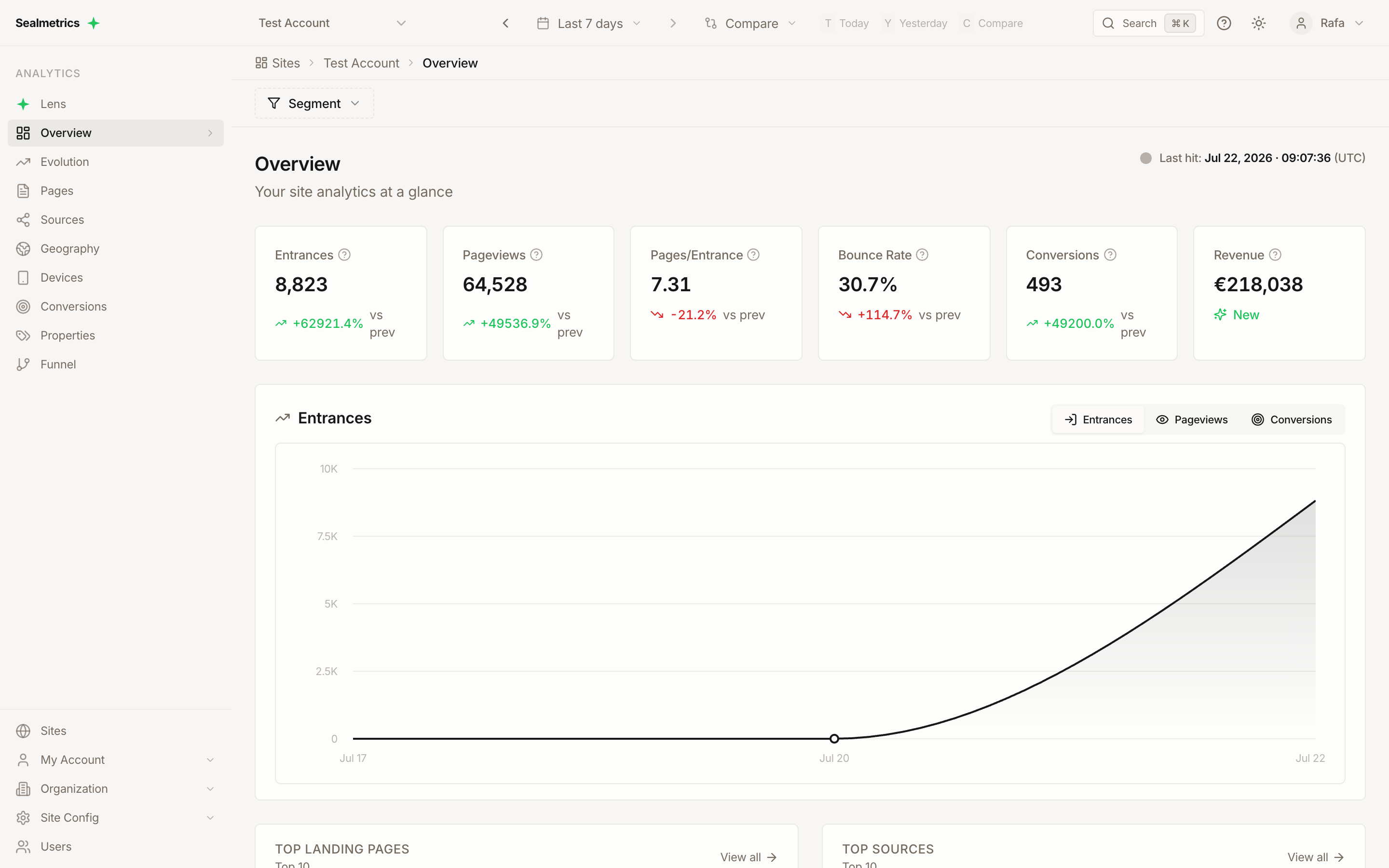
The Overview report answers "how is my site doing right now?" at a glance. It is the main dashboard: six stat cards summarize entrances, pageviews, pages per entrance, bounce rate, conversions and revenue for the selected period — each with its change versus the previous period — alongside a last-hit indicator, a trend chart, and the top landing pages and top sources. It loads by default when you open a site and is the starting point for daily monitoring.
Accessing the Report
- Select a site from the site selector
- Click Overview in the sidebar (or it loads by default)
URL pattern: /sites/{site_id}/overview (opening /sites/{site_id} redirects here)
The stat cards and the chart refresh automatically every 60 seconds while the page is open.
Metrics Summary
The top section displays six stat cards:
| Metric | Description |
|---|---|
| Entrances | Number of sessions started in the period (see Entrances) |
| Pageviews | Total page views across all sessions |
| Pages/Entrance | Pageviews ÷ Entrances, shown with two decimals |
| Bounce Rate | Percentage of single-page sessions |
| Conversions | Total conversion events (sealmetrics.conv() calls) of every type — purchases, leads, sign-ups… |
| Revenue | Sum of the amounts sent with conversions, in the site's currency |
Hover the info icon next to each label for its definition. Microconversions (events) and conversion rate are not shown as stat cards on this page; see the Conversions and Sources reports.
Each card shows:
- Current value
- Change versus the previous period (the same number of days immediately before the selected range), labelled "vs prev"
- Green for improvement, red for decline, gray for no change. For Bounce Rate the colors are inverted: a decrease is green
- New (with a sparkle icon) when the previous period was zero and the current one is not; no delta is shown when both periods are zero
On the Overview, the stat card deltas are always calculated against the previous period of equal length — even when the Compare control is set to No comparison, Previous year or Custom comparison. For a year-over-year view on this page, select last year's dates as the date range and read the values directly.
Live Counter
The indicator in the top-right corner of the page shows when the pixel last received a hit — Last hit: followed by the date and time in the site's timezone (for example Last hit: Sep 21, 2026 · 10:42:07 (Europe/Madrid)). It is not a count of active visitors.
- A pulsing green dot means the last hit arrived within the last 5 minutes
- A gray dot means no hit in the last 5 minutes
- No hits yet means the site has never received data
The indicator refreshes every 60 seconds. Use it as a quick check that tracking is still working.
Main Chart
Large area chart showing the trend over the selected period.
Metric Selector
Toggle between metrics using the buttons above the chart:
| Option | Shows |
|---|---|
| Entrances | Session starts over time |
| Pageviews | Page views over time |
| Conversions | Conversions over time |
Revenue, bounce rate and pages per entrance have no chart on this page — only their stat cards.
Chart Features
- Hover: Shows the exact value for each data point
- Granularity: Hourly points for ranges of 3 days or less, daily points for longer ranges
- Comparison line: When the Compare control is set to anything other than No comparison, a second line labelled Previous period is drawn, with a legend. It always shows the immediately previous period, whichever compare option is selected
- Responsive: Chart adjusts to screen size
Top Landing Pages Table
Shows the 10 landing pages (the first page of a session) that started the most sessions in the selected period.
| Column | Description |
|---|---|
| Landing Page | URL path where the session started |
| Entrances | Sessions that started on this page |
| Conversions | Conversions attributed to sessions that started on this page |
| Bounce Rate | Percentage of those sessions that viewed only one page |
A Total row sums Entrances and Conversions and shows the entrance-weighted Bounce Rate — for the 10 rows shown, not for the whole site. Click View all to open the Pages report, whose Landing Pages tab adds microconversions, revenue and content groups.
Top Sources Table
Shows the 10 source / medium combinations that brought the most entrances.
| Column | Description |
|---|---|
| Source / Medium | Traffic source and medium (e.g., "google / organic"). Sessions without a source appear as (direct) |
| Entrances | Sessions from this source / medium |
| Conv. | Conversions attributed to those sessions (last click per session) |
| Conv. Rate | Conversions ÷ Entrances × 100 |
A Total row sums Entrances and Conv. and recalculates Conv. Rate over the 10 rows shown. Click View all to open the Sources report, which adds revenue, bounce rate and the Channels, Mediums, Campaigns, Terms, Content and Referrers tabs.
The two tables have no sorting, search, export or per-row comparison on the Overview — use the full reports for that.
Using Filters
The Overview has no local (table) filters and no report-specific controls: no filter builder, no UTM or content-group filters, no grouping and no view toggles. What narrows the data here is the date range and the global Segment.
What the Segment applies to
The Segment panel offers two filter groups — Geography (Countries) and Devices (Device Type, Browser, Operating System) — and they apply to every block on the Overview except the chart's comparison line:
| Block | Countries | Device Type | Browser | Operating System |
|---|---|---|---|---|
| Stat cards (current and previous period) | Yes | Yes | Yes | Yes |
| Main chart — current period line | Yes | Yes | Yes | Yes |
| Main chart — Previous period line | No | No | No | No |
| Top Landing Pages | Yes | Yes | Yes | Yes |
| Top Sources | Yes | Yes | Yes | Yes |
With a segment active, the chart's Previous period line is currently drawn from unsegmented traffic, so the two lines are not comparable. Use the stat card deltas, which are segmented in both periods.
Filtering by source, medium, campaign or page is not available on the Overview; use the Sources or Pages report. See Filters for how segments are saved and persisted.
Example: Mobile Traffic Only
- Click Segment in the filter bar
- Open the Devices section
- Under Device Type, choose Mobile
- Click Apply Segment — all stat cards, the chart and both tables update to show mobile-only data
Example: Specific Country
- Click Segment
- Open the Geography section
- Under Countries, search and select countries (e.g., Spain, Germany)
- Click Apply Segment — the dashboard shows only traffic from the selected countries
Using Comparison Mode
The stat cards always show the change versus the previous period, so they need no setup. To also draw the previous period on the chart:
- Click the Compare button next to the date range
- Select any option other than No comparison (see Date Range)
- The chart displays the current period and a Previous period line
Reading Delta Values
| Delta | Meaning |
|---|---|
| +15% (green) | 15% increase vs the previous period |
| -8% (red) | 8% decrease vs the previous period |
| -8% (green, Bounce Rate only) | Bounce rate fell 8% — an improvement |
| New | The previous period was zero |
Best Practices
Daily Monitoring
- Check the Overview daily for anomalies
- Glance at Last hit — a gray dot during hours when you normally have traffic can mean the pixel stopped firing
- Watch for sudden drops in entrances (tracking issues)
- Monitor bounce rate and conversions against the previous period
Quick Health Check
- Select Today or Yesterday — the stat cards compare it with the day before
- Look for large deviations in Entrances, Conversions or Revenue
- Check Top Sources if traffic changed
- Check Top Landing Pages if bounce rate increased
Using with Other Reports
From Overview, dive deeper:
| Observation | Next Step |
|---|---|
| Bounce rate increased | Go to Pages → Landing Pages tab |
| Conversions dropped | Go to Conversions report |
| Traffic source changed | Go to Sources report |
| Geographic shift | Go to Geography report |
E-commerce use cases
These cases assume your store sends each order as a conversion with its amount (sealmetrics.conv('purchase', amount)) — without the amount, Revenue stays at zero. See the E-commerce Setup Guide or your platform's integration (for example Shopify or WooCommerce). The Conversions card counts every conversion type, so if you also track leads or sign-ups as conversions, they are included in the totals below.
Is today's revenue on track?
- Set the date range to Today (or Yesterday for a full day)
- Read the Revenue and Conversions cards and their "vs prev" deltas, which compare with the day before
- For average order value, divide Revenue by Conversions (see AOV)
How to read it: Revenue and Conversions moving in the same direction as Entrances is normal traffic variation. Entrances steady but Conversions falling points to the store (checkout, payment, stock, pricing) rather than to marketing. If Conversions drops to zero while Entrances looks normal, check that the purchase conversion is still firing — see Conversions not appearing.
Which sources bring buyers, not just visits?
- Look at the Top Sources table
- Compare Entrances with Conv. and Conv. Rate for each source / medium
How to read it: A source high in Entrances but low in Conv. Rate brings browsers, not buyers — review the targeting or the landing page it sends traffic to before adding budget. A source with modest Entrances but a Conv. Rate above the Total row is a candidate to scale. Click View all to open the Sources report for Revenue per source and the Campaigns tab. Attribution is last click per session: each conversion is credited to the source of the session in which it happened. If a payment gateway appears among your top sources, see Avoid "Payment" attribution.
Which landing pages get traffic but no sales?
- Look at the Top Landing Pages table
- Scan for rows with high Entrances, high Bounce Rate and few or no Conversions
How to read it: A product or category page that starts many sessions, bounces most of them and produces no conversions is losing paid or organic traffic — check load speed, stock, price visibility and whether the page matches the ad or search result that sends visitors there. Open View all → Landing Pages tab to see revenue and microconversions such as add_to_cart per landing page (microconversions must be instrumented).
Is mobile converting as well as desktop?
- Click Segment → Devices → Device Type → Mobile, then Apply Segment, and note Entrances, Bounce Rate, Conversions and Revenue
- Change the Device Type to Desktop, apply, and note the same cards
- Work out Conversions ÷ Entrances for each device
How to read it: If mobile brings a large share of Entrances but a much lower conversion rate than desktop, the mobile product page or checkout is the likely bottleneck. Use the Funnel report with add_to_cart and begin_checkout microconversions to locate the step where mobile shoppers drop.
Did the promotion lift orders, or only traffic?
- Set the date range to the promotion's dates and remove any segment
- Set Compare to any option other than No comparison
- In the chart, switch between Entrances and Conversions and compare each against the Previous period line; check the Revenue card delta
How to read it: Entrances up with Conversions and Revenue flat means the promotion drove visits that did not buy — look at which sources and landing pages carried the extra traffic in the two tables. Conversions up while Revenue grows less than Conversions suggests smaller baskets (lower AOV), typical of discount-driven orders. Because the chart and cards compare with the immediately previous period, a pre-promotion lull or a holiday can distort the comparison; for a seasonal check, also select the same dates last year as the date range and compare the card values by hand.
Related Reports
- Traffic Source Analysis — where visitors come from, by medium, campaign, and device.
- ROAS Evolution — Return on Ad Spend over time by source, medium, or campaign.
- Sales Funnel — funnel stages from micro-conversions to completed sales.
- Definitions — every metric, defined unambiguously.
- E-commerce Store — how to instrument an online store end to end.
- Reports Overview — all reports in one place.